Linux Commands 101: CP vs MV
If you’ve recently moved from Windows to Linux, the command-line may feel a bit intimidating at first. But once you understand a few basic commands, it becomes a powerful and simple tool.
Two of the most commonly used commands are cp and mv.
Think of them as the Linux equivalents of Copy and Cut/Paste in Windows File Explorer.
What cp Does: Copy Files and Folders
The cp command copies files or folders. It keeps the original file where it is and creates a second copy somewhere else.
This is like right-click > Copy > Paste in Windows.
Basic Example of cp
Let’s say you have a file called notes.txt in your Downloads folder and you want to copy it to your Documents folder:
cp ~/Downloads/notes.txt ~/Documents/
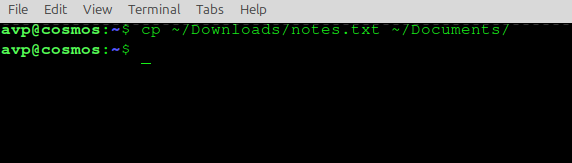
After running this, you now have a copy of the file:
- The original file in Downloads
- A new copied file in Documents
Copying a Folder
To copy a folder, add the -r option (it means “recursive”):
cp -r ~/Pictures/Vacation ~/Documents/

This creates a copy of the Vacation folder inside Documents, including all files and subfolders. The original folder still exists in the Pictures.
What mv Does: Move or Rename Files and Folders
The mv command moves files or folders. It removes the item from its original location and places it in a new one.
This works like Cut> Paste in Windows.
Basic Example
Move notes.txt from Downloads to Documents:
mv ~/Downloads/notes.txt ~/Documents/

Now the file no longer exists in Downloads as it has been moved to Documents.
Renaming with mv
In Linux, renaming is done through mv.
So if you want to rename notes.txt to notes_backup.txt while keeping it in the same folder:
mv notes.txt notes_backup.txt

That’s it, you just renamed the file.
How to Remember the Difference for cp vs mv
- If you want to keep the original: use cp
- If you want to relocate or rename the file: use mv

Safety Tips for Beginners
- Use Tab key for auto-completion. Avoid typing long folder names; press Tab to autocomplete paths.
- Use quotes if your file has spaces.
Example:
cp "my file.txt" ~/Documents/

- Add the –i option for safety as it asks before overwriting anything.
cp -i file.txt ~/Documents/

mv -i file.txt ~/Documents/
To sum it up
- cp = duplicate
- mv = relocate or rename
Both are easy once you try them a few times.
Happy exploring.

Installing And Using ZFS In Linux Mint / Ubuntu – Part 2

Saving Disk Space In Linux Mint Using Deborphan