There are temporary email addresses that you can use to sign-up for newsletters and other updates. This is useful when you don’t want to give your real/primary email address to avoid spam. Many times though, it can be tedious to have a lot of such different temporary email addresses to keep a track of.
In that case, using Firefox Relay helps. What it does is use randomly generated email addresses called relay aliases that can forward emails to your actual email address. So, you will still receive all the emails to your primary email address but without having to provide it while subscribing to various sign-ups.
Using Firefox Relay:
To use it, go to the Firefox Relay page here and click on Sign In.
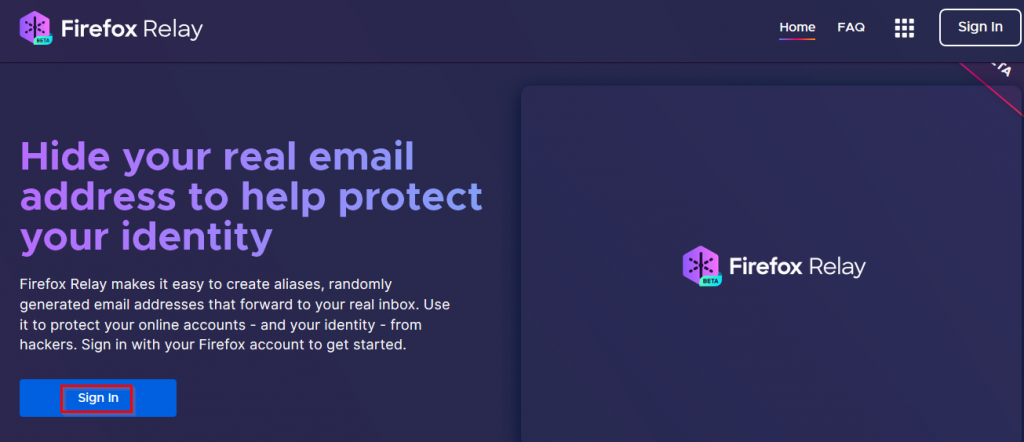
You’d need to sign-in with a Firefox account. The email account used for Firefox sign-in or sign-up will be where the forwarded emails will be delivered.
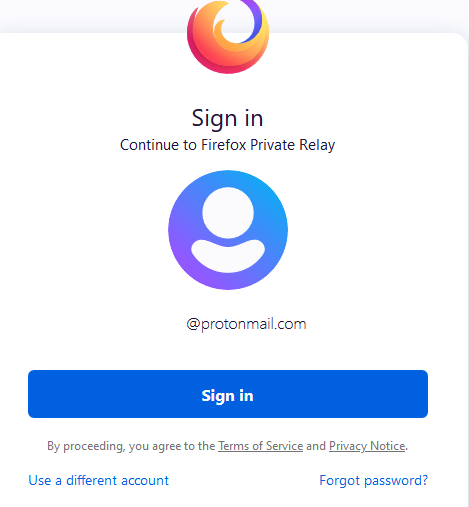
Once signed in, you can directly set up relays or use an add-on.
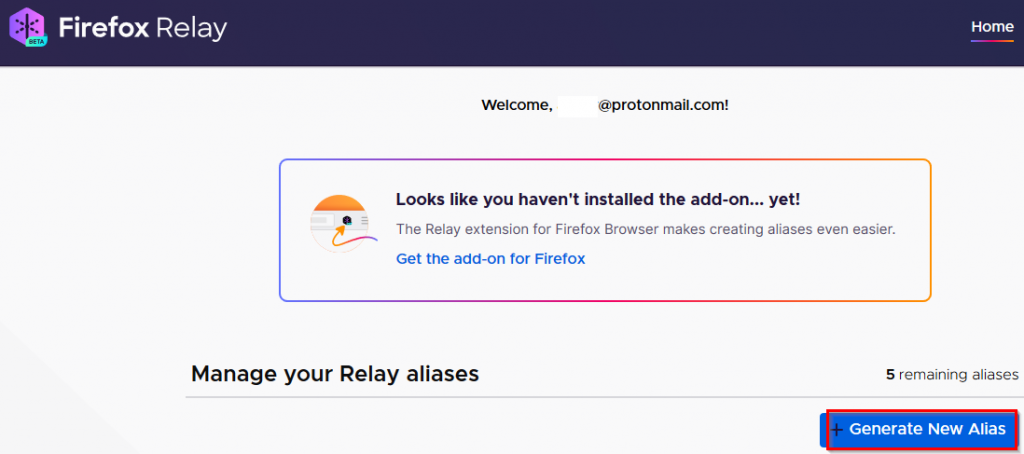
Let’s take a look at how to do both.
Setting up relay aliases using the Firefox Relay dashboard:
After logging into the dashboard, you can create relay aliases. To make them, click on Generate New Alias. Once a relay alias is generated, it will show up in the aliases list. Click on Show Details to know about the relay alias details. You can also copy-paste and use the alias email for various sign-ups.
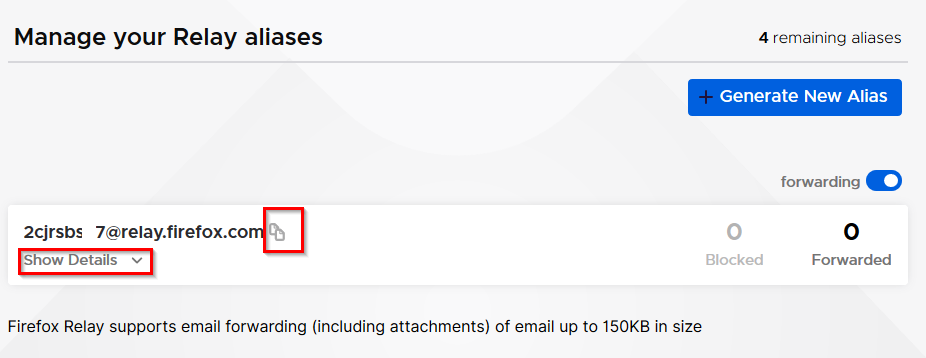
Up to five relay aliases can be created. By default, the forwarding feature is enabled but can be turned off if needed. Also, by using these relay aliases, you can forward attachments but they are small in size and up to 150 KB. This is because the primary use of them is only to receive email updates like newsletters and then forward them to your actual email address.
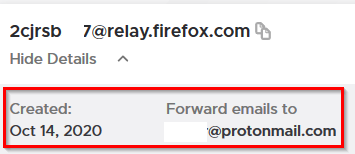
Various information like the alias name, the timestamp when it was created, and the actual email address to which it forwards the emails will be displayed.
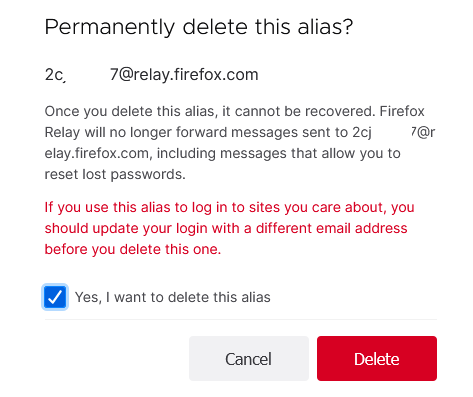
You can also delete a relay alias from here by clicking the Delete button.

So, if you are getting a lot of spam or unwanted emails from a particular alias, simply delete it.
As new relay aliases are created, they will be displayed in the Firefox Relay dashboard.
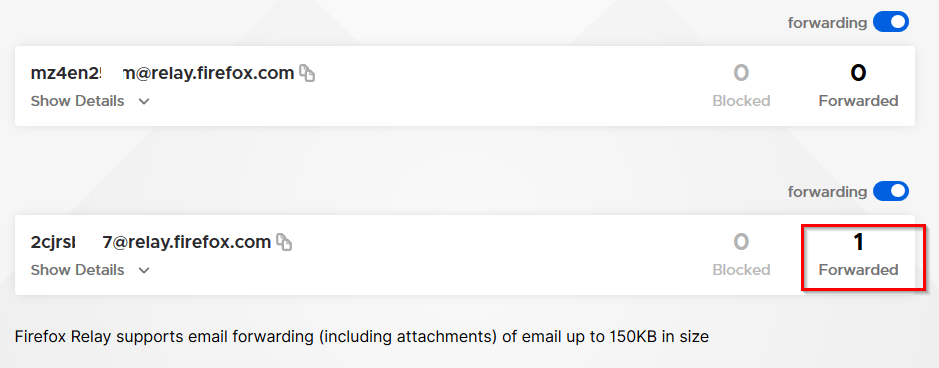
Also, the count next to them in the Forwarded section shows the number of emails that they have forwarded to the actual email address.
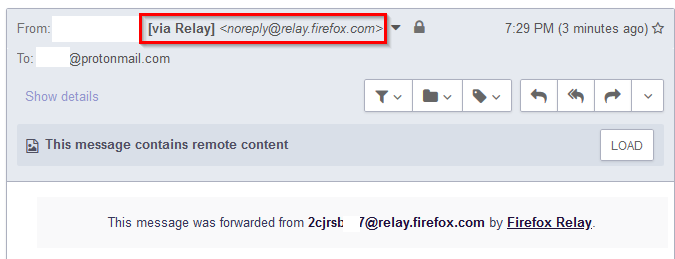
To check the emails forwarded, login to your actual email account. The inbox will show the forwarded email which will be marked as via Relay.

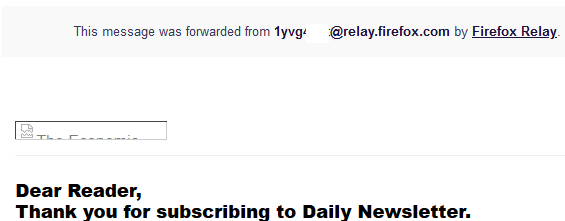
Opening the message will also display the relay alias that was used to forward the email message.
Using the Firefox Relay add-on:
To use the add-on, download and install it from here. (This is still in the beta stage).
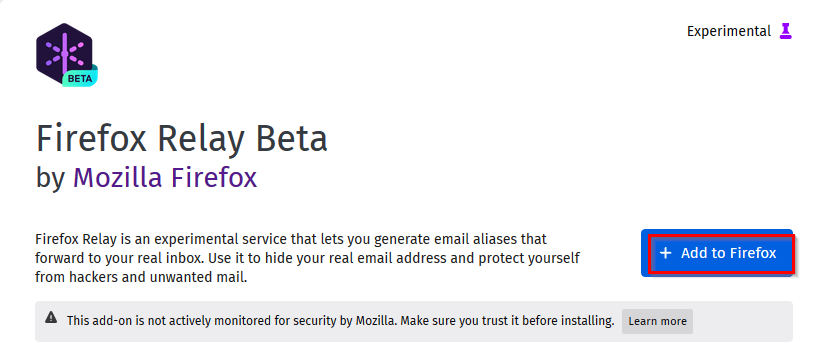
Once installed, it will be available next to the Firefox address bar.

Click on the add-on icon and sign-in using your Firefox account.
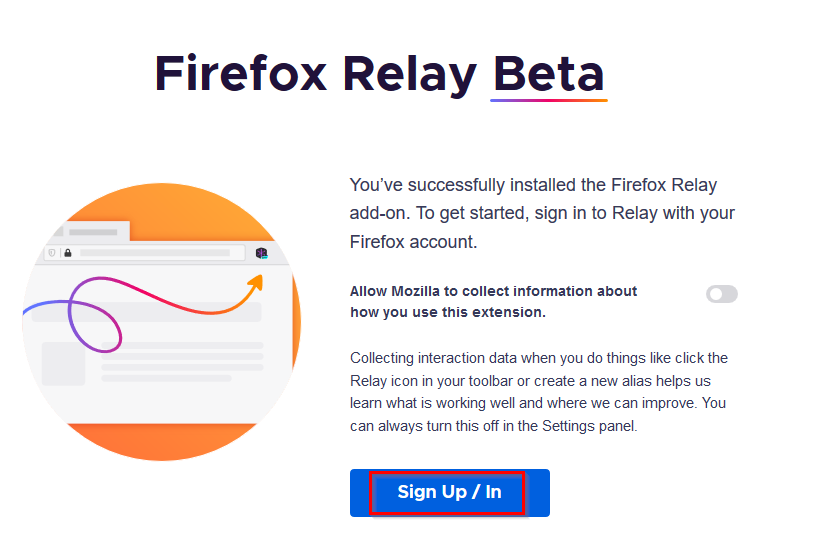
This Firefox Relay add-on icon will be visible whenever there is an email field that needs to be filled up. To change the add-on settings, click on the gear icon.
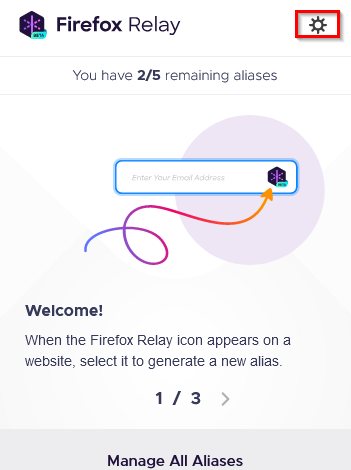
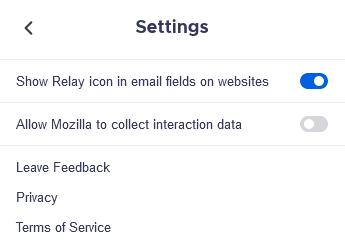
You can then turn off the add-on icon to be visible in email fields by clicking on the gear icon. Also, the option to log Mozilla interaction data can be disabled from here.
Then, whenever you come across an email field on a website and to which you want to subscribe to, either click on the add-on icon if visible or right-click within the field and select Generate New Alias.

This will automatically generate a random relay alias. You can use this to subscribe to emails.
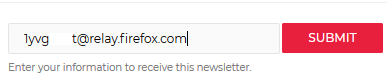
All the subsequent emails will then be forwarded by this alias to your main email account without needing to sign-up with that actual email address.
This is a great way to avoid spam and protect your main email address. Simply assign different relay aliases for various email newsletters so that they can forward the emails to your main email account. And if a particular relay alias forwards unwanted emails or spam, delete it without affecting your main email address.
Happy relaying.