It is always a good security practice to verify ISO files of various Linux distros before installing, and Linux Mint is no exception. This verification involves two steps: integrity check to make sure that the downloaded ISO file is intact and authenticity check to ensure that it is from the official source.
This guide uses Linux Mint 22.2 Xfce ISO and explains the steps to check these from an existing Linux system.
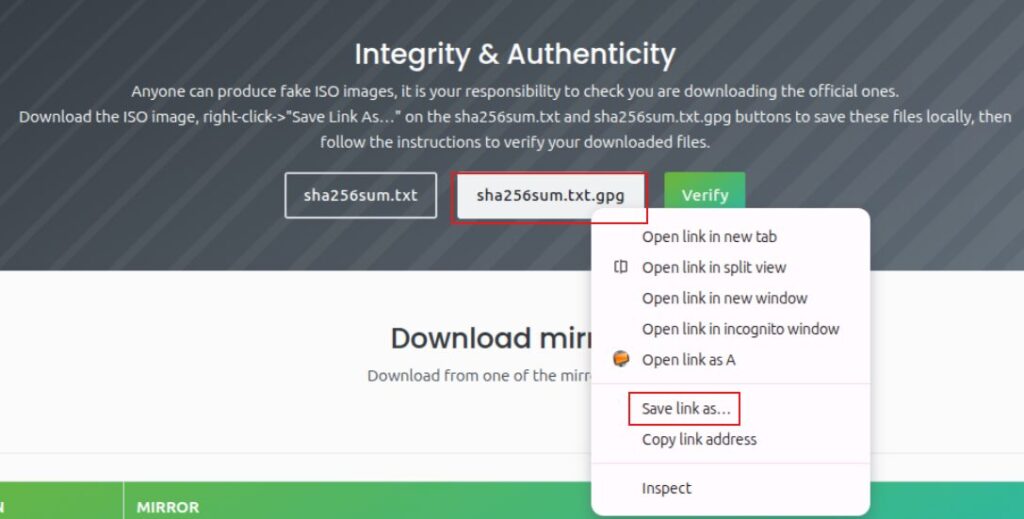
To begin, first create a folder in which you will keep the downloaded ISO file along with two other files: sha256sum.txt and sha256sum.txt.gpg

These files will be available from the Linux Mint ISO download page depending on the selected flavor (Xfce in this example), right-click on each of these two files and choose Save link as.

Once these three files are downloaded in a folder (Mint in this example), open that path in the Terminal as that is where all these files are located.
Integrity check
To check the integrity of the Linux Mint ISO file, generate its SHA256 sum and compare it with the sum present in sha256sum.txt using the following command:
sha256sum -b filename.iso
cat sha256sum.txt

If both the sums match, the integrity check is verified. If they don’t, then download the ISO again.
Authenticity check
Coming to authenticity check, this requires checking the signature of the downloaded sha256sum.txt.gpg file earlier.
To do this, first import the Linux Mint signing key through the following command:
gpg --keyserver hkp://keys.openpgp.org:80 --recv-key 27DEB15644C6B3CF3BD7D291300F846BA25BAE09

Then, check if the key is properly imported with this command:
gpg --list-key --with-fingerprint A25BAE09

If the key is properly imported, the output will contain 27DE B156 44C6 B3CF 3BD7 D291 300F 846B A25B AE09 (the value of the imported key).
Finally, to verify the authenticity of sha256sum.txt, run the following command:
gpg --verify sha256sum.txt.gpg sha256sum.txt
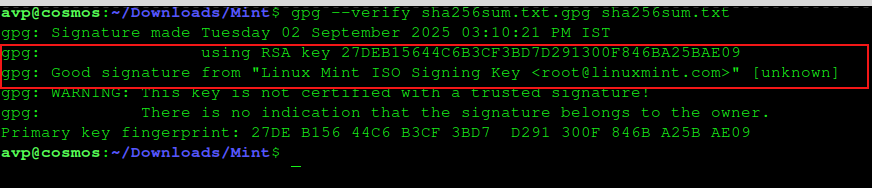
If you see the output next to the file signature as Good signature and signed with the imported key from above, this means that the authenticity check is successful. The other message of the signature not trusted is normal.
Now that you have successfully checked the integrity and the authenticity of the downloaded ISO, you can confidently proceed with the installation.
All done.