Link previews in emails are useful because they show a quick summary like the page title, description, and image without opening the link. This saves time, helps identify relevant content, and adds clarity to messages. They also improve safety by revealing where a link leads, making it easier to spot suspicious or unsafe URLs.
Thunderbird too like most email clients supports adding link previews in messages but this option is disabled by default.
Here is how to enable it:
Open Thunderbird and click the square settings icon from the top right to select Settings.
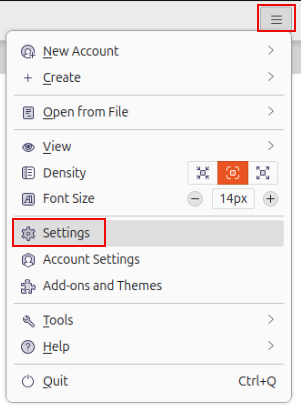
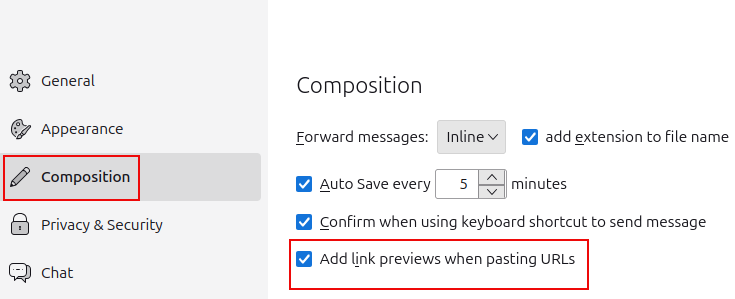
Click on Composition from the left pane. On the right side, from under the Composition section, enable the option Add link previews when pasting URLs.
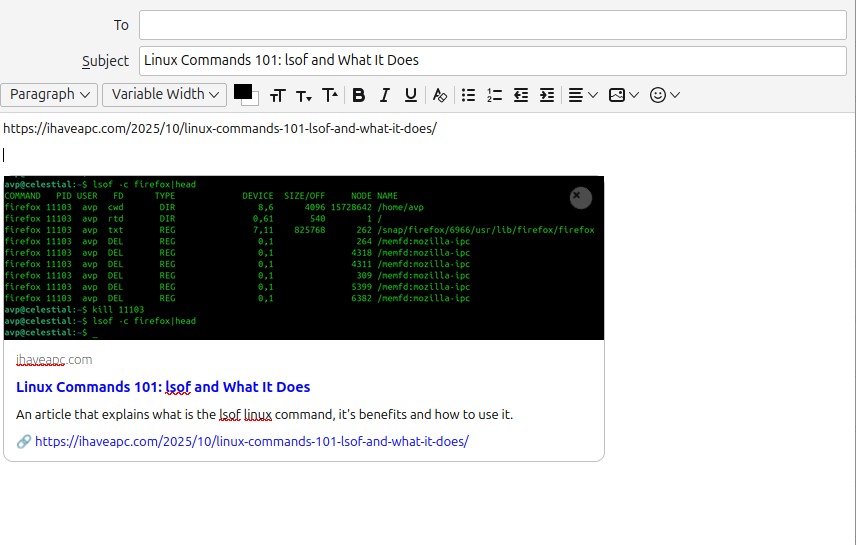
Now, open the message composing window and copy-paste any URL in the message. Thunderbird will automatically show the link preview of that URL.
So, overall, link previews make emails more informative, secure, and visually engaging.