Google Chrome by default, enables site-suggested ads, which means the browser can show you ads based on how much time you spend on different websites. While this may improve ad relevance, it can also feel like an invasion of privacy.
The good news is that Chrome allows you to turn this feature off. Keep in mind, though, that disabling site-suggested ads won’t block ads entirely as it only prevents Chrome from personalizing them using your browsing behavior.
Here’s how you can manage this setting:
Open Chrome and type in the address bar:
chrome://settings/privacy

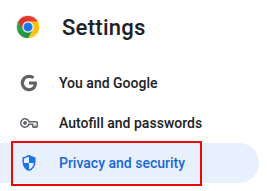
On the left-hand side, click Privacy and security.
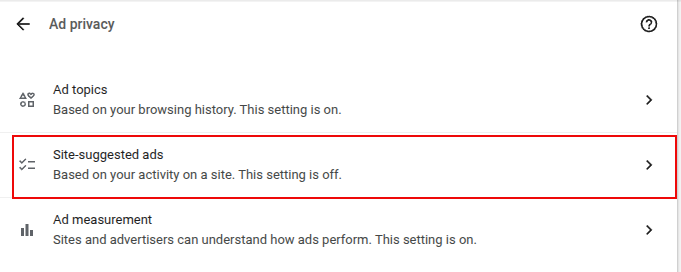
Then, select Ad privacy from the right.
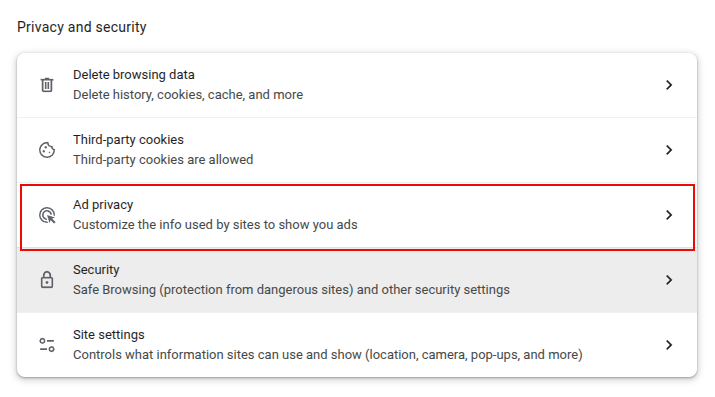
From the Ad privacy section, click on Site-suggested ads.
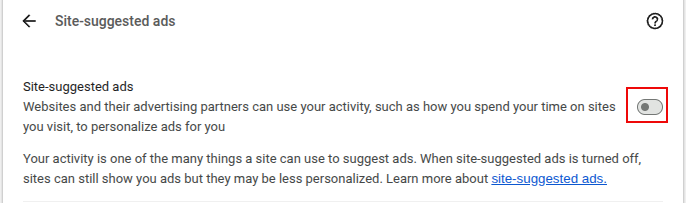
Toggle the option to off for Site-suggested ads.
You can also toggle off specific ad topics if you don’t want them used for personalization.
Note: This won’t stop ads completely, but it limits how tailored they are to you based on your browsing behavior. So enabling at least some kind of privacy measure is better than no measure at all. 🙂
To sum it up, disabling site-suggested ads in Chrome is a simple way to reduce how much of your browsing data is used for advertising.
While ads won’t disappear, you’ll have better control over how much personalization happens in your browser.
Happy browsing.