If you’re new to Linux, you might be exploring the many system commands/tools that come with it. One very useful tool is called lsof. It stands for List Open Files, and as the name suggests, it helps you see which files are currently open on your system.
You might be thinking: “Why would I care about open files?” Well, in Linux, everything is a file not just documents, but also things like devices, directories, and even network connections.
The lsof command can help you troubleshoot problems, monitor activity, or just understand what’s going on under the hood.
Let’s walk through what it does and how to use it.
What Does lsof Do?
The lsof command shows you a list of all the open files on your system, and which processes are using them. An open file might be a text file opened in an editor like nano or vim, a log file being written to by a background process, a network connection that a program is using, a shared library loaded by a program.
Each open file is tied to a process (a running program). lsof tells you what process is using what file.
How to Use lsof
You can run lsof in the terminal. Here’s a basic example:
lsof
This will show a long list of all open files on the system.
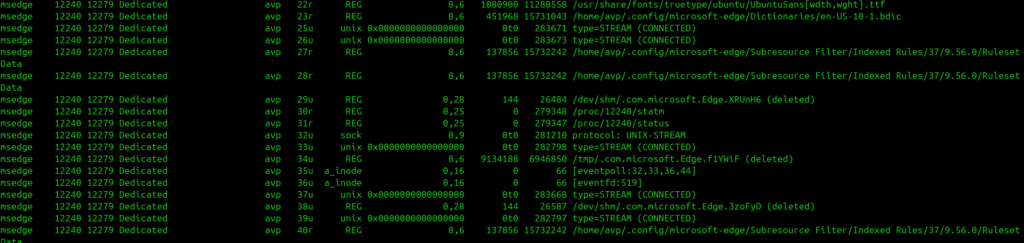
It’s usually too much to read all at once, so we can also narrow it down using head and tail commands. (An earlier article explains how to use the head and tail commands to format the output.)
Useful Examples of lsof
See Who’s Using a Specific File
lsof /path/to/file
Example:
lsof /var/log/syslog
This shows which process is using that file. Useful if you want to know why a file is locked or busy.
Find Open Files by a Specific User
lsof -u username
Example:
lsof -u avp
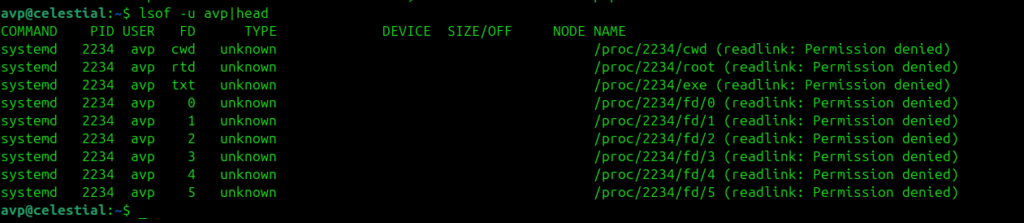
Shows all files opened by processes run by the user avp. This example uses the head command along with it to show only the first few lines of an otherwise long output.
Find Which Process is Using a Port
lsof -i :port
Example:
lsof -i :443
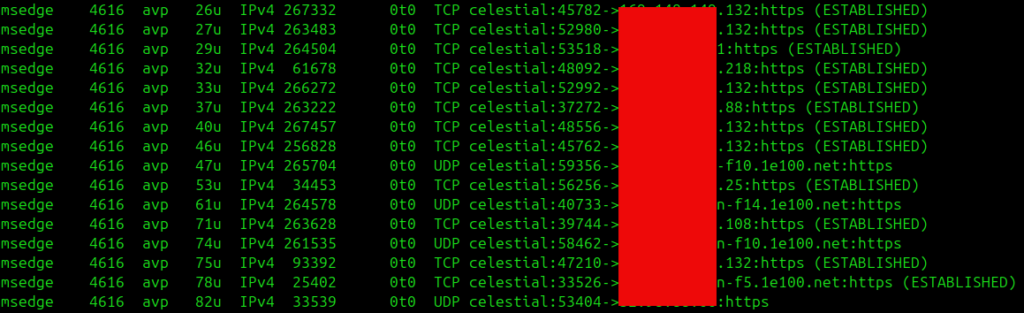
This is beneficial if you’re trying to figure out what is using a certain network port, like port 443 for HTTPS connections.
See All Network Connections
lsof -i
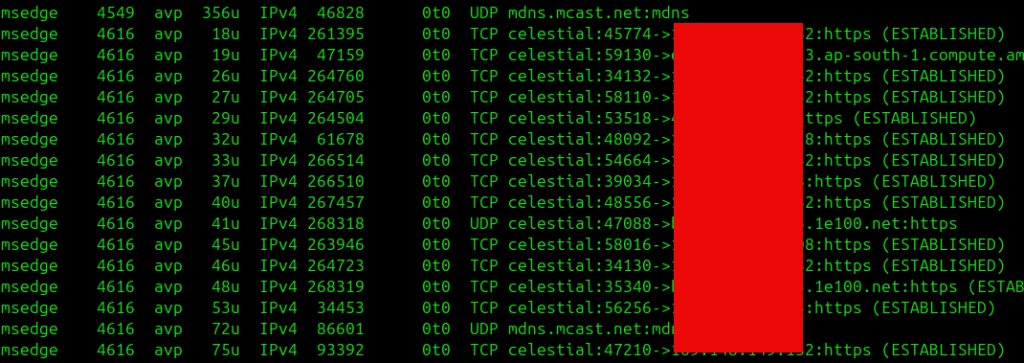
This shows open files related to internet connections and is great for checking which apps are using the network.
List All Files Open by a Specific Program
lsof -c name
Example:
lsof -c firefox
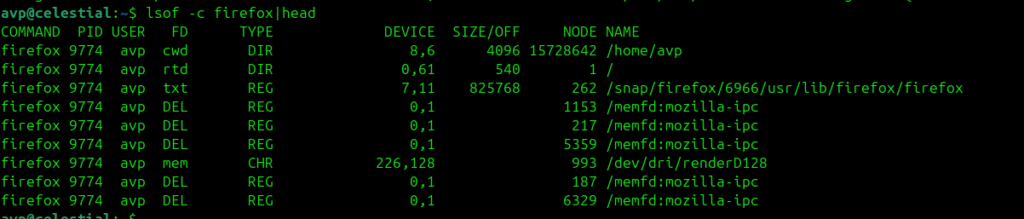
Shows all files opened by processes with names starting with firefox (Firefox browser).
Using sudo with lsof
Some open files belong to system processes or other users. To see everything, you might need to run lsof with sudo:
sudo lsof
This gives you full visibility.
Understanding the Output
When you run lsof, you’ll see columns like:
| COMMAND | The name of the command/process |
| PID | Process ID |
| USER | The user who owns the process |
| FD | File descriptor (how the file is being used) |
| TYPE | TYPE |
| DEVICE | Device number |
| SIZE/OFF | File size or offset |
| NODE | Node number (inode) |
| NAME | Name of the file |
Don’t worry if this seems like a lot at first, usually, the process name, PID, and file path are what you care about most.
Pro Tip: Find and Kill a Process
Sometimes, a process locks a file you want to delete or edit. You can use lsof to find this process ID and then stop it:
lsof /path/to/file
Then, kill it using the kill command and the process ID.
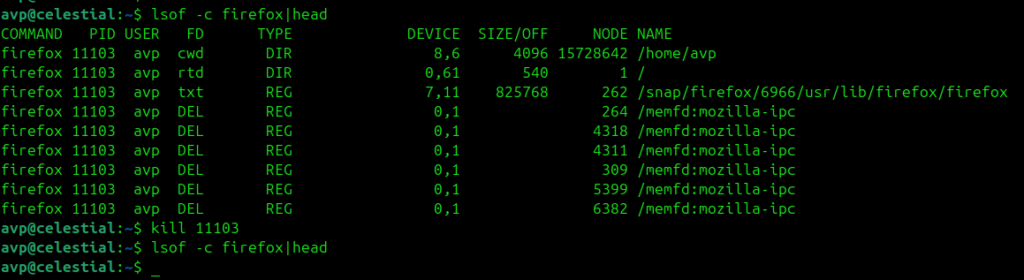
The example shows the kill command to kill a process ID numbered 11103 which was Firefox.
Once the kill command is executed, all instances of Firefox were shut down right away as the output shows a blank result on once again listing that process ID after.
Be careful with this though and make sure you understand what the process does before killing it!
Summary
The lsof command is a powerful tool that helps you see what files are being used, find out what’s using a certain network port, check which processes are using a file, monitor activity from users or programs and so on.
Although it might seem a bit technical at first, but once you get the hang of it, lsof becomes an essential part of your Linux toolbox.