Nano is one of the simplest text editors available in the Linux command line. It opens quickly, is easy to understand, and displays helpful shortcuts right on the screen.

For users who are just starting out with Linux, Nano can be a great tool for editing text files directly from the Linux command-line without feeling overwhelmed.
So here are 8 beginner-friendly features of Nano:
1. Easy On-Screen Shortcut Guide
At the bottom of the Nano window, you will always see a list of shortcuts like ^O (Save), ^X (Exit), ^W (Search), and more.
This helps new users because you don’t have to memorize commands as Nano shows them to you every time.
2. Simple Saving and Exiting
Saving your file is as easy as pressing Ctrl + O, and exiting is Ctrl + X.
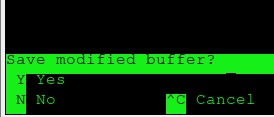
If you forget to save, Nano will gently remind you before exiting, so you don’t lose your work.
3. Search Within the File
You can quickly find words or lines inside a file by pressing Ctrl + W.

Type what you’re looking for, and Nano will jump right to it. This is very handy when editing long configuration files.
4. Copy, Cut, and Paste Text
Nano makes text editing simple:
Mark text: Ctrl + ^ (set starting point)
- Cut: Ctrl + K
- Paste: Ctrl + U
These shortcuts work like basic text editors, so new users feel right at home.
5. Undo and Redo
Made a mistake? No problem.
Nano supports undo and redo features.
- Undo: Alt + U
- Redo: Alt + E
This gives beginners the confidence to experiment without worrying about breaking something.
6. Line Number Display
If you’re editing config files or code, seeing line numbers helps.
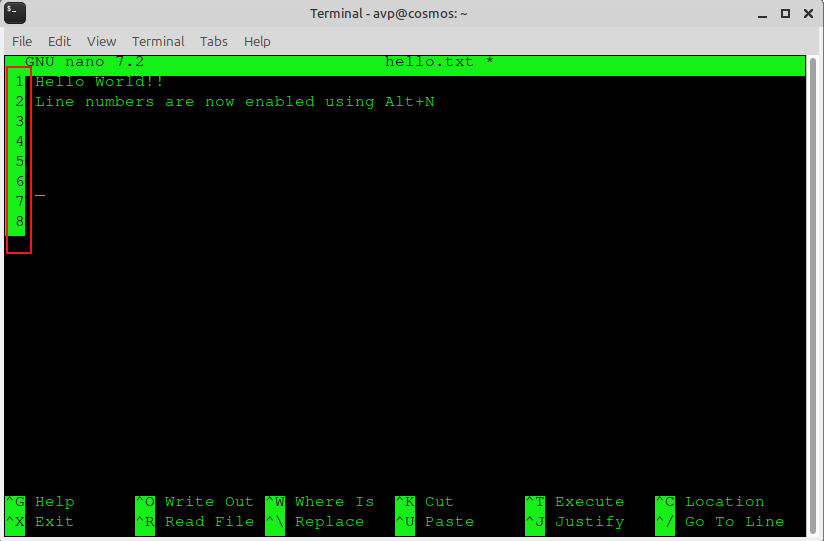
Press Alt + N to toggle line numbers on or off.
This makes navigation much easier for new users.
7. Smooth Navigation Keys
You can move around using the arrow keys rather than learning complicated commands.
Home, End, Page Up, and Page Down also work normally, making Nano feel familiar to anyone who has used a standard text editor before.
8. Backup File Creation
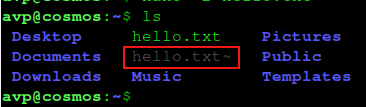
Nano can automatically create a backup copy of your file when saving.
When opening a file using Nano with the -B option, it saves a backup with a ~ at the end of the filename.
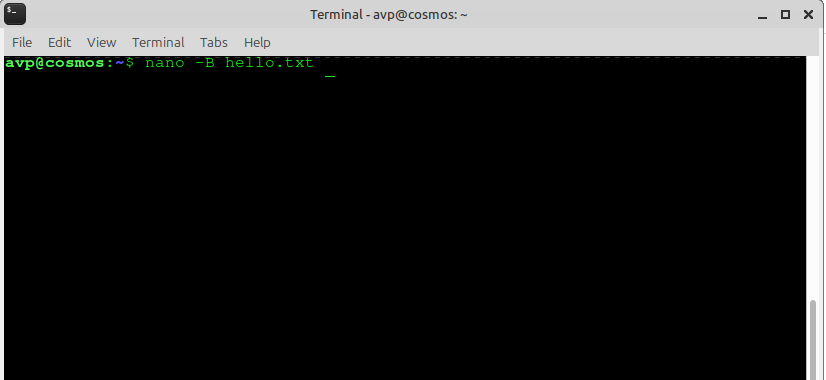
This helps beginners avoid accidental data loss.
To sum it up, Nano is friendly, powerful, and ideal for new Linux users. With easy shortcuts, simple navigation, and built-in help, it makes working in the terminal much less intimidating.
Once you get comfortable with Nano, editing configuration files or scripts becomes a smooth and stress-free experience.
Happy editing.