In Linux Mint 22.2 , if you want to personalize how the clock looks in your system tray, it just takes a couple of clicks.
Start by right-clicking the clock and choosing Properties.
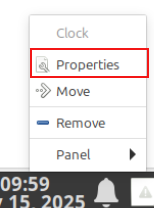
This opens the Clock configuration window, where you can customize almost every part of how your clock appears.
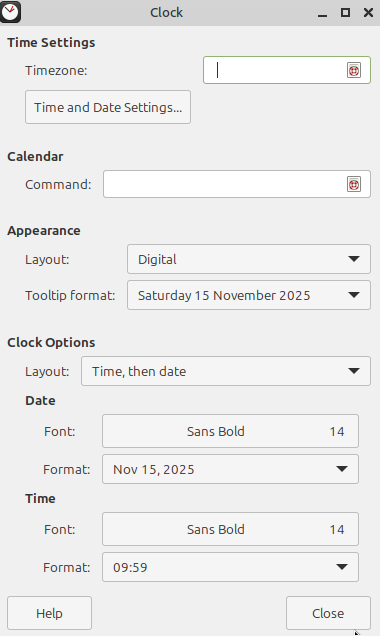
Choose Your Clock Style
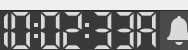
You’re not limited to a simple digital display. Pick the look you like best from options such as Analog, Binary, Digital, Fuzzy, or LCD.

Each one gives the system tray a different visual personality.

Customize Time & Date Layout
Under Clock Options>Layout, you can decide how the date and time should show up.

Want only the time? Only the date? Prefer the date before the time, or the time before the date? Just select the layout that suits your preference.
Change the Font
If you want your clock to stand out or blend in adjust the font style and size.
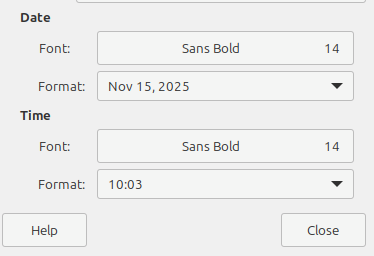
You can also tweak the display format to match how you prefer reading time and date.
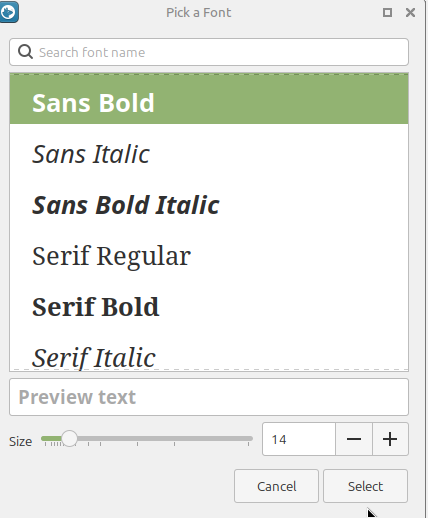
Once you’re happy with everything, simply close the window. Your clock is now customized just the way you like it in the system tray.
All set.