Brave has built a solid reputation as a privacy-focused browser that doesn’t compromise on convenience. One of its standout convenience features is the built-in Password Manager, which now automatically signs you into websites where you have saved your credentials.
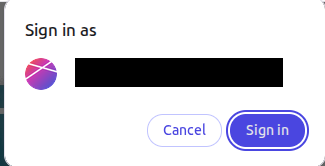
While skipping the login screen is a great time-saver, it isn’t for everyone. Whether you share a computer with others or juggle multiple accounts for the same website, you might prefer to have manual control over when and how you log in. Fortunately, Brave makes it incredibly easy to toggle this feature on or off.
Here is a quick guide on how to manage your auto sign-in preferences, along with a look at the pros and cons of using this feature.
Step-by-Step Guide: How to Toggle Automatic Sign-In
If you want to stop Brave from logging you in automatically or if you want to turn the feature back on, follow these simple steps:
Open the Brave Browser on your computer. Click on the Hamburger Menu (the three horizontal lines) in the top-right corner of the window. Select Passwords and autofill > Password Manager from the drop-down menu.
(Alternatively, you can type brave://password-manager/settings into your address bar and hit Enter).
In the left-hand sidebar of the Password Manager, click on Settings. Look for the Sign in automatically option.
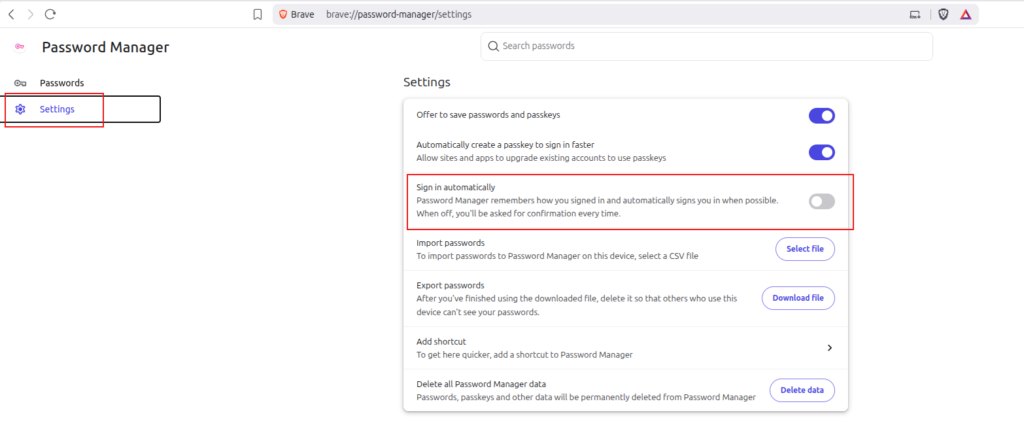
Toggle the switch to turn the feature on or off based on your preference.
The changes are saved automatically. If you toggle it off, Brave will still securely fill in your usernames and passwords, but it will wait for you to click the Log In or Submit button before proceeding.
The Merits of Auto Sign-In
Why keep this feature enabled? Here are the main benefits:
- Unmatched Convenience: The biggest advantage is a frictionless browsing experience. You bypass the login screen entirely, getting straight to the content or service you need.
- Time-Saving: If you visit dozens of password-protected sites daily (like email, work portals, or social media), shaving a few seconds off every login adds up over time.
- Reduced Password Fatigue: Even with a password manager auto-filling your details, having to constantly verify and click “submit” can be tedious. Auto sign-in removes that repetitive step.
The Demerits of Auto Sign-In
Despite the convenience, there are valid reasons you might want to turn this feature off:
- Security Risks on Shared Devices: If you share your computer with family members, friends, or coworkers, auto sign-in grants anyone using your browser instant access to your private accounts, emails, and financial portals.
- Multiple Account Conflicts: If you manage multiple accounts on a single platform (e.g., a personal Twitter account and a business Twitter account), auto sign-in can be frustrating. It will automatically log you into the default saved account, forcing you to manually log out before you can access the other one.
- Accidental Exposure: If you step away from your computer in a public space like a cafe or an office without locking it, anyone who sits down can open Brave and instantly access your signed-in websites without needing a master password prompt.
The Verdict
Ultimately, whether you should use Brave’s Sign in automatically comes down to your personal computing environment. If you are the sole user of a desktop computer that stays in a secure home office, leaving it enabled offers a seamless experience.
However, if you use a laptop in public spaces, share your device, or frequently switch between different accounts, toggling it off is the much safer and practical choice.
Happy and safe browsing.