Do you find yourself constantly scrolling through your mailbox to find the same few folders? Outlook web’s Favorites feature is a great way to save time and declutter your inbox. By adding your most-used folders to Favorites, you can access them with a single click.
Here’s a quick guide on how to manage your folders using this feature.
Adding a Folder to Favorites
Log in to Outlook: Go to outlook.com in your web browser and log in to your account.
Locate your folders: In the left-hand navigation pane, scroll down to see your list of folders.
Right-click the folder: Find the folder you want to add to Favorites and right-click on it. A menu will appear with several options. From the menu, click on Add to Favorites.

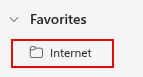
The folder will instantly be moved and appear at the top of your folder list, under the Favorites section.
Removing a Folder from Favorites
If you no longer need a folder in your Favorites, removing it is just as easy.
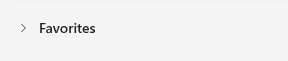
Locate the folder in Favorites: Click the Favorites section at the top of your folder list.
Right-click the folder: Right-click on the folder you wish to remove. From the drop-down menu, click on Remove from Favorites.
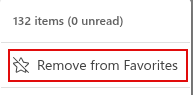
The folder will disappear from your Favorites list.
Why Use Favorites?
This simple feature is a powerful tool for managing your folders and making your email workflow more efficient. Along with other features like color-coding folders, using Favorites helps keep your folders organized and makes sure your most important folders are always within easy reach.
Happy emailing.