Telegram Web is the browser-based version of the popular cloud-based messaging platform Telegram, allowing you to access your chats, groups, and channels directly from any desktop or mobile browser without installing a standalone app.
By logging in securely via a quick QR code scan or your phone number, you get instant, real-time synchronization across all your active devices. Because Telegram operates entirely in the cloud, the web version is incredibly light on system resources and device storage, making it the perfect solution for office productivity, typing on a full keyboard, or messaging on shared computers where downloading software isn’t an option.
It also has the option to toggle power saving mode. This is simple to configure and here is how to do that.
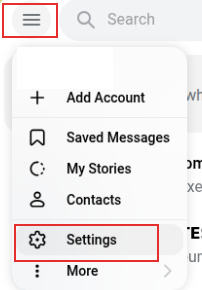
Login to Telegram Web and click on the top left burger icon, choose Settings > General Settings.
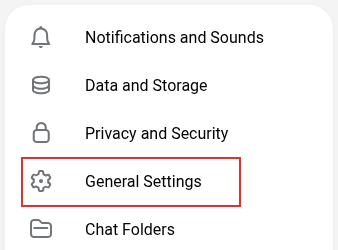
From the General Settings menu, select Power Saving Mode.
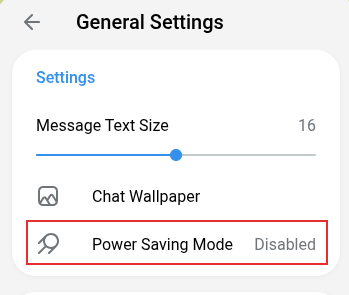
By default, this is disabled. Toggle the slider to enable it.
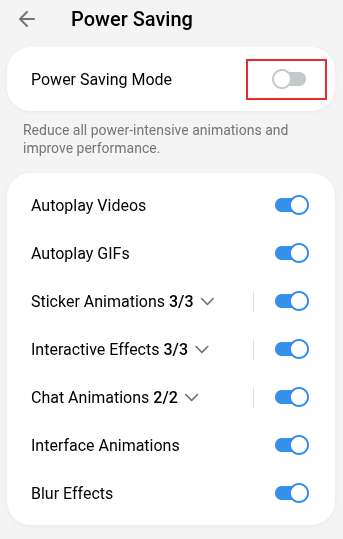
Once enabled, you will see that various options like autoplaying of videos, GIFs, animations and various interactive effects will be automatically disabled.
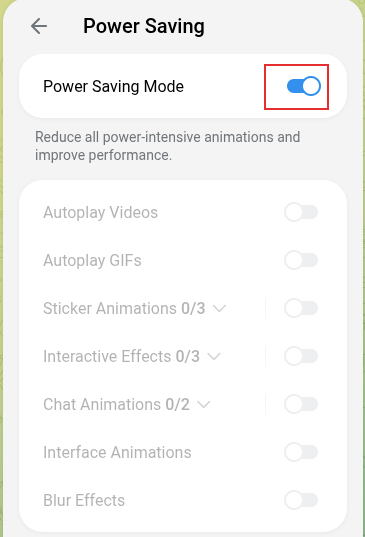
Overall, this is a useful power saving feature to have when you are using a laptop and want to increase the battery life.
Happy Telegram-ing.